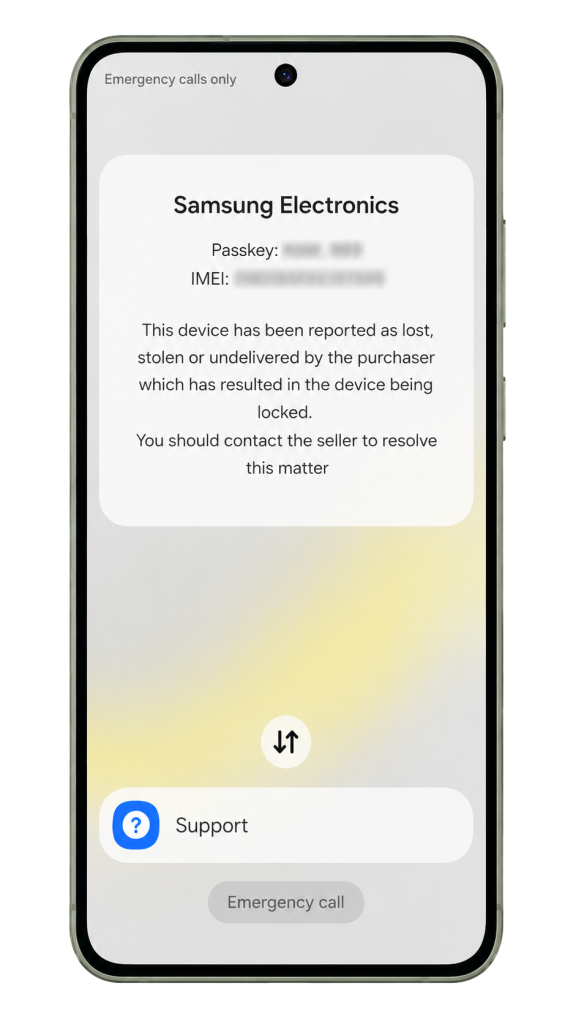
MDM Locked
The device shows Mobile Device Management restrictions and requires the Fixik unlock workflow.
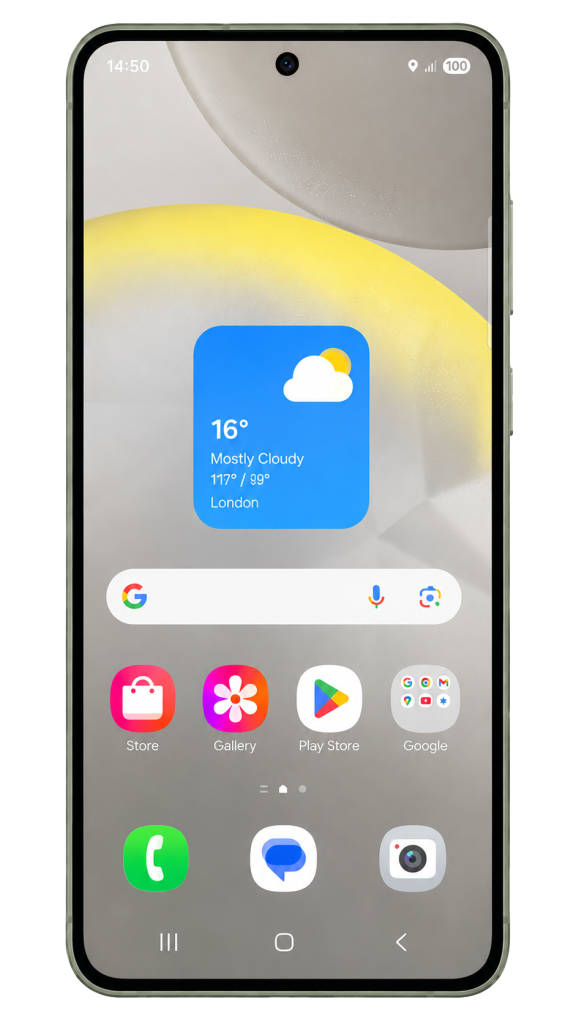
MDM Removed
After the repair procedure completes successfully, the phone can return to normal use without MDM restrictions.
How to bypass and unlock MDM restrictions on Samsung
1. Check Firmware Support with the Fixik Workflow
The Fixik MDM Unlock workflow supports the Samsung Galaxy Tab A7 Lite SM-T225 SM-T227U and helps remove Mobile Device Management (MDM) restrictions from eligible devices.
Start by checking your firmware with the Fixik Phone Checker tool. The checker reviews the phone model, firmware version, security patch, and compatibility status.
When the checker confirms support for your Samsung Galaxy Tab A7 Lite SM-T225 SM-T227U, continue with the next step: enabling ADB, also known as Android Debug Bridge.
2. Enable ADB on Samsung Galaxy Tab A7 Lite SM-T225 SM-T227U
Before you start the MDM unlock process on your Samsung Galaxy Tab A7 Lite SM-T225 SM-T227U, enable ADB on the device. The Fixik workflow uses ADB access to communicate with the phone and run the unlock procedure.
Method 1: QR Code
Use the Fixik QR Code method to enable ADB quickly on supported devices. Many users choose this option because it keeps the setup simple.
Method 2: MTP Method
Choose the Fixik MTP method if the QR Code option does not fit your device. This method can help you gain access and enable ADB.
Alternative ADB Methods
You can also use another working method to enable ADB on your Samsung Galaxy Tab A7 Lite SM-T225 SM-T227U. After the device accepts
ADB access, move to the repair step.
Next Step
After your computer detects the phone through ADB, continue to the Fixik MDM unlock workflow and start the repair procedure.
3. Run the Repair Procedure
After you enable ADB on your Samsung Galaxy Tab A7 Lite SM-T225 SM-T227U, the phone becomes ready for the remote unlock process.
Connect the phone to your computer with a working USB cable. Check that Windows detects the device correctly. When the phone shows the ADB authorization request, tap Allow and select Always allow from this computer.
Open the software and start the Repair procedure. The tool connects to the phone, runs the required service commands, and removes the MDM lock from the device.
Important: Keep the USB cable connected and do not reboot the phone while the repair process runs.
Success: When the repair procedure finishes successfully, your Samsung Galaxy Tab A7 Lite SM-T225 SM-T227U can return to normal use without MDM restrictions.
Important Information
Firmware version, security patch, binary version, region, and device condition can affect supported operations for Samsung Galaxy Tab A7 Lite SM-T225 SM-T227U.
Read each operation instruction carefully before you start the process.